Showing posts with label PC. Show all posts

Friday, 25 March 2016

How To Transfer Data From Android To PC/Laptop Using WIFI

Many times we need to transfer data from our phone to PC/Laptop or vice verse because of to save our personal photos, audios, videos and other files in PC/Laptop or mobile phone. In every day we often connect our phone to computer with the help of USB. But you cannot carry or have USB all the time with you but any situation or time when you have to need to transfers data from computer/laptop to your phone  or vice verse in college or any other place then it becomes difficult for it. But don’t worry there is always a solution of every problem so that for this problem a Software Data Cable app is designed for android users to transfers the data from mobile phone to computer or computer to mobile phone without any use of data cable. This app is free of cost and you can download it from Google play store. With the help of this app it becomes easy, fast and secure way to to transfers data.  This app can Connect and share everything among phones, Pad, Google TV, Cloud storage, Xbox, PC, Mac, Laptop etc. So here is a simple steps to download and transfers data from android phone to PC/Laptop or vice verse without using data cable.


Best AdNetwork You Must Try


Steps To Transfers Data From Android Phone To PC


#1. First of all you have to an same WiFi network connection on computer or your android phone.
#2. Then simply Download the Software Data Cable app from Google Play Store.
Download Software Data Cable App
download-Pepsi-Skate-3D-sync-data
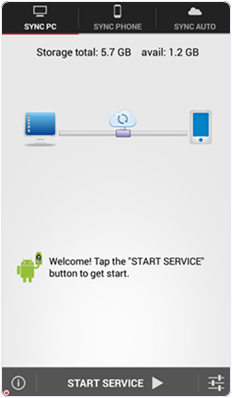
#3. Install the app in your android phone and click on start service.
download-Pepsi-Skate-3D-ip-address
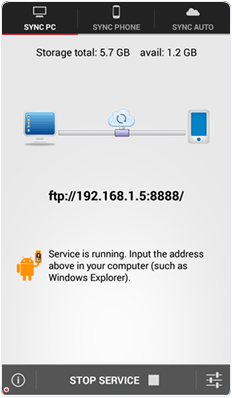
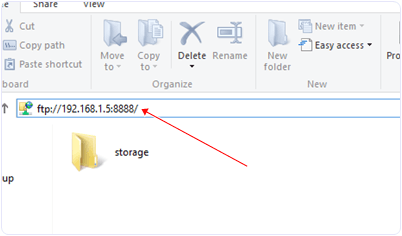
#4. Then it will show you ftp://192.168.1.5:8888 address, simply copy the address or fill into your computer address bar and click OK. It will show you storage folder where your all files stored now  you can transfers the data from your android phone to computer or vice verse.
ip-address-in-my-computer
I hope you like this method and find easy to use. In case you have any question please leave your comments below.

How To Transfer Data/Connect Two Laptops Using WIFI

As we can share data between two laptop devices with LAN cable easily. Sometimes we are not in the state to access LAN cable. In that situation we need to transfer large data. Then best possible solution is to connect two laptops using WiFi network. Even connecting device wirelessly is easy and we can move design where we feel comfortable. As we ready explained about transfer data from android to laptop using Wifi. In the same way we can also connect two laptops using WiFi easily. We just need to make a small adhoc network to share files with others. Laptops has wireless cards so with the helps of laptops we can create an adhoc network without any wireless WiFi router. Even we can use our mobile hotspot to create wireless network between laptops. If you do not know how to configure a wireless network then this post is really for you. Here we are going to discuss about how to connect two laptops using WiFi. Which is really and best way to create wireless network between two laptop.
Make Money From Here


How To Connect Two Laptops Using WiFi.

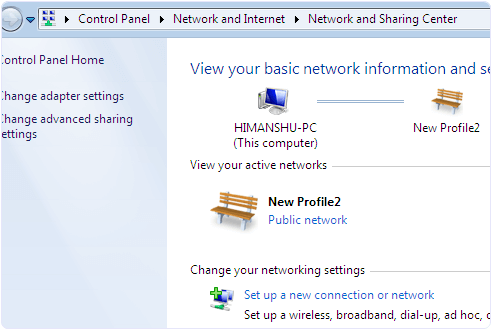
Step 1. Open the control panel and then click on Network and internet option. Then you see the network and sharing option. Open it.
Step 2. Now you see the Network and sharing Window with many options. You have to click on the setup a new connection.Windows network and sharing settings for wifi connection
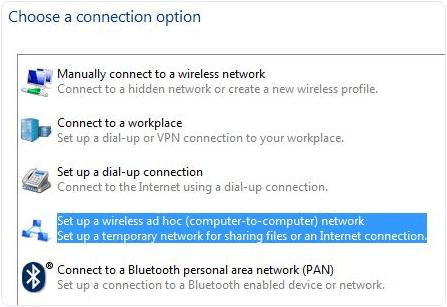
Step 3. Now you see a choose connection option Dialog. In the dialog look for set up wireless and adhoc network.
Set up wireless connection network windows
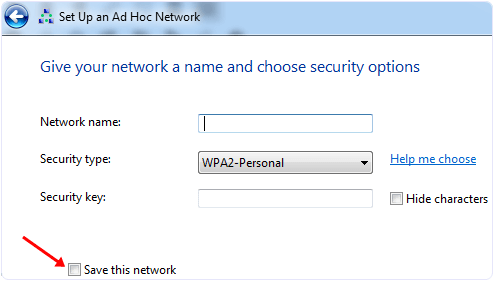
Step 4. Now you can see the next window with Network name, security type and security key option.
Step 5. Now you have to give a name to your network and choose a security option. The default security option is WPA2-Personal which is stronger.
Set up adhoc network on windows
Step 6. You can also leave the security option with no authentication and WEP.
Step 7. Do not forget to tick the checkbox with save this network option. If you don’t tick the option then after disconnecting the network you have to configure the network again.
Now your wireless network is ready and shown with other networks. Click on your network to connect. After connecting you will see a message at right hand side of network name waiting for users.
Now you have to share data among Wireless Network.

Workgroup Sharing Settings.

If your Laptops have different OS then you have to use the Workgroup sharing option because, this option can share data among similar and different OS.
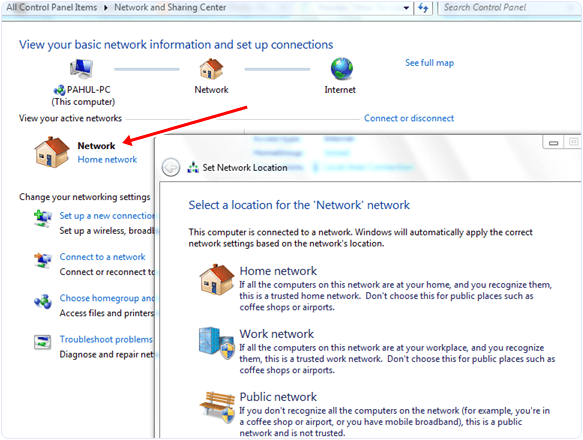
Step 1. First you need to check adhoc network you created, its network type should be Home or work.
Step 2. If not then open the network and sharing center then click on the name of network if it says home network then you do not need to change the network type otherwise you have to select home network.
Windows workgroup network location settings
Step 3. This setting allow you to share your data with other computers. Other thing you need to check is that all the computers are in the same workgroup.
Step 4. In Windows XP you can change Workgroup setting by right clicking on My Computer and select properties. Look for system properties and click on the Computer Name tab to change the settings.
Step 5. In Windows Vista and higher versions right click on computer and click on properties. You can change this settings in Computer name, Domain name and workgroup settings section.
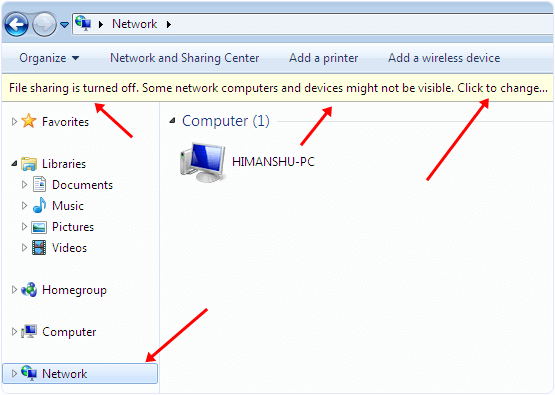
Step 6. Last thing that we should apply to Windows 7 PC from which we want to access other computer is to open the Explorer and click on the Network option.
Windows file sharing settings on network
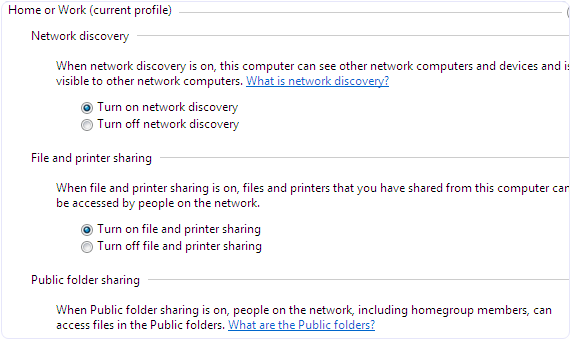
Step 7. After that you see a popup bar with Network discovery and file sharing are turn off. Network computers and devices are not visible. Turn on this settings to allow sharing of resources.
Follow the above steps to all the network computers to allow sharing with them.
Step 8. Now open the network and sharing center click on change advanced sharing option. Then tick the radio buttons shown in the images.
Windows network discovery file sharing media settingsWindows network sharing advances settings
So these are few steps to connect two laptops using WiFi. By doing this you can easily transfer data from one laptop to another via WiFi. You just need to share that file or folder on network which we had created between laptops.

Top 6 Best Screen Sharing Software For Windows PC – 2016

Remote desktop access is called controlling the another person’s PC or device through remote desktop connection. Remote desktop also refers to an software which allows the user to interact with another computer’s desktop and do anything through remote access. It is a client/server model in which there is one client PC which connects to the another client’s PC. With the help of host (called third party software) through the internet and you can manage or access the computer which are placed on different location far from you. Like if your any family person lives in different place which is far from you. They have some kind of software problem in their computer and wants your help. So you can help them with the help remote desktop & screen sharing software. While solving the problem you can feel that you are sitting in front of their PC.
Screen Sharing software let you all the authorities of another person computer, you can manage their computer files, programs and helping them to solve their problems without going out your friend’s home. Even screen recording softwareare useful to teach others. But Screen sharing software also help in business purposes for online meetings or sometimes you have to manage lots of computers in your company or solve your clients problem. So you cannot manage particular computer by  because it takes lots of time of yours to go to the particular computer and solves problem. But with the help of screen sharing software for PC you can get your access your clients PC and solve their problems by siting only at one place.

List Of Best Screen Sharing Software For PC.

#1 Team Viewer

Team Viewer is best, popular in all screen sharing software. Which helps you manage online meetings and can get access to your partner’s PC. It takes only few seconds to connect any PC or server. You can get access to your office computer from home or can also access your application and data. Team Viewer gives you different packages, for online meetings you can add up to 25 participants. you can boost your products sales by giving online presentations.
Team Viewer

#2 Mikogo.

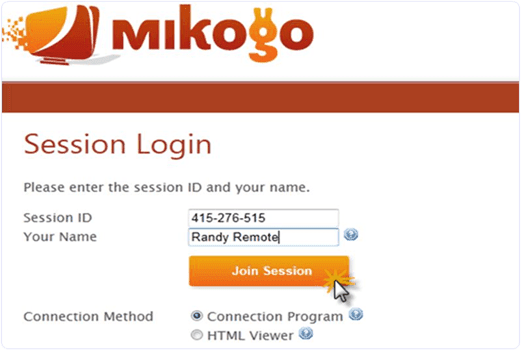
Mikogo is 100% browser based tool which helps to set up online meetings. It is free for non-commercial use and for business purposes provides different plans you can check on their website. Mikogo is an powerful and great online meeting software for set up online conferences and for online presentations. Large number of companies use mikogo for their business purposes. It is a cross platform software and you can set up meeting up to with 25 participants.
Mikogo

#3 Join.Me.

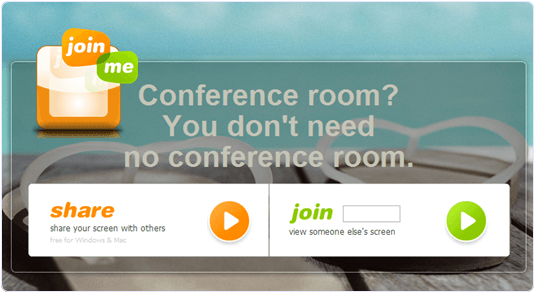
Join.me is an free, simple screen sharing software with the help of this you can manage online meeting and can share your partner’s screen. They have different plans for business user’s. For non-commercial use it is free. You can keep record of your meetings so you can share later with other participants. You can also download mobile app and take meetings where ever you are on road, on home etc.
Join.Me

#4 Ammyy Admin.

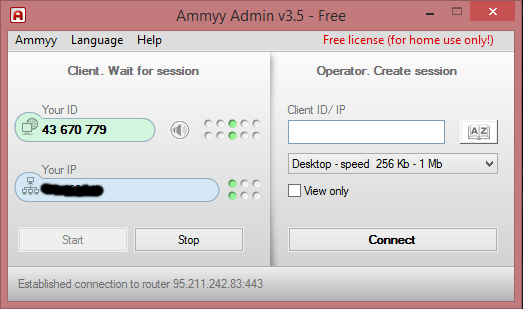
Ammyy Admin is an easily way to share a remote desktop over the internet. You don’t have to download any software just download 0.5mb tiny exe file and click on it after open it fill session ID and password and you can connect with your partner’s computer. You can also voice chat with your partner and relatives or you can send and share large number of data through Ammyy Admin. It is a free software for remote desktop connection.
Ammyy Admin

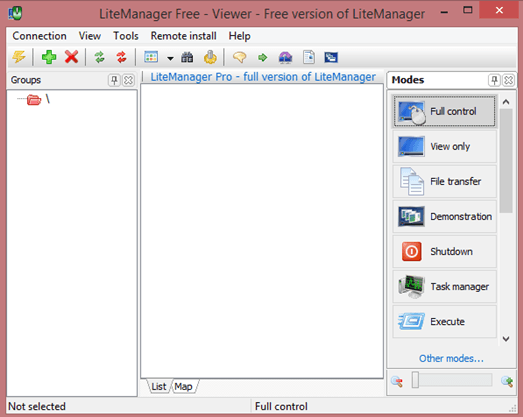
#5 LiteManager.

LiteManager is an remote access software which helps to connect with your partner’s computer and set up online meetings. In free version you can you can manage up to 30 computers. You can do tesxt chat, audio and video chat with your remote desktop. You can also download trial version for 30 days as well as free version for basic purposes. It is mainly designed for system administrators. It is a reliable, convenient and fast software and you can use easily.
LiteManager

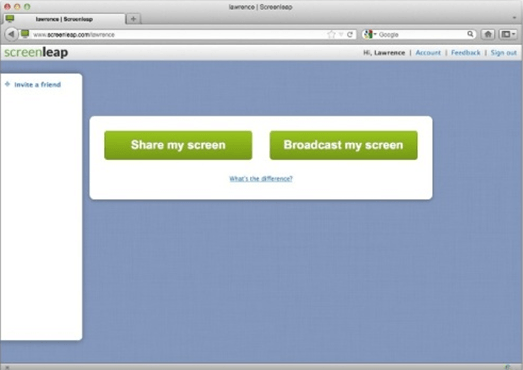
#6 Screenleap.

Screen leap is free and reliable software for screen sharing. For free use you can share your screen only 1/2 hours per day with maximum 8 participants. It is a quick and easy software just download it and create a session then fill session ID and password after it you can easily share your partner ID with in few seconds.
Screenleap
These are some best screen sharing software for PC. These are based on our research so if you have any best software for screen sharing which is missing in the list just leave your comment.

Top 5 Best Screen Recording Software For PC – 2016

Whenever we want to record our desktop screen we all need to use best screen recorder. But we face many problem while searching best and easy screen recording software. Just because some of then are paid and rest other provide very less features. So its not easy to find any best software which should be also free to use and having all the best quality features. Sometimes we just want to make short video tutorial in which want to record all the steps. These type software mostly used by users who want to share information online on YouTube like media. Today here we are going to list out some of the best screen recording software for PC. So if you don’t have any kind free software for video making then must check out all the below listed software which are free to use and also having too many important features.

List Of Best Screen Recording Software For PC.

#1 Screencast-o-Matic.

Screencast-o-Matic-logoScreencast-o-Matic is popular software for recording screen. I like Screencast-o-Matic just because of there amazing features and Video quality. Screencast-o-Matic is available in both version Freeware and Paid. Screencast-o-Matic freeware version having some limited access in which you can record upto 15 min video. So we can record videos along webcam also directly publish HD video on YouTube. But the only problem is Watermark in Freeware version. In Screencast-o-Matic you can edit video at any frame of second means you cut and add new seen at any frame of second. The overall performance of Screencast-o-Matic is good as compare to others.

#2 CamStudio

CamStudio logoCamStudio is another free screen recording software for Windows. CamStudio is light waited and simple software to start recording instantly. CamStudio is able to record all the screen activities and audio on computer. Camstudio is able to create Video file with AVI format and also turn those AVI into Streaming Flash Videos (SWFs). Camstudio is best software for creating short clips and video tutorials. So if want to try Camstudio then download it directly from Official Website of CamStudio.

#3 EzVid

EzVid logoEzVid is another best and famous screen recording software. EzVid provides best video quality in its freeware version. EzVid is Coolest screen recorder because of its cutting-edge effects and features. Which includes video recording, Facecam, voice synthesis, screen drawing, speed control these are some the features. All these make it best making videos which entertain, inform and enchant your viewers. In EzVid you can direct upload your video on YouTube just by single click. Since released in 2012 EzVid has been downloaded around millions of times and used to upload videos on YouTube. So if you want to try EzVid download it from official site.

#4 BlueBerry Flashback Express

BB Flashback Express logoBB Flashback express is free and useful software for screen recorder and also webcam activities. BB express having clean interface and easy to use which help to create and uploading video easily and instantly. BB express has fine screen recorder compact and high quality video tutorials. After recording video with BB it save files in FBR file format. Which you further and convert into AVI format for sharing and uploading. BB express provide free functioning for 30 days . After that you need to create a new account and register with them to continue using its services.

#5 Camtasia Studio (Paid)

Camtasia Studio logoCamtasia is most expensive video recording software in market. Camtasia is best and most popular. I just list out this software because of its popularity and features. The above 4 listed software are free to use but Camtasia is only paid and best software. Camtasia is best for screen recording and video editing software published by TechSmith. In Camtasia there are huge number features available for best video creation which you can upload and publish on YouTube and on other network. To download Camtasia visit official site of TechSmith for latest versions.
These are best screen recording software for PC which we find useful. There are many more free and paid software available in market. So just try yourself and decide which is best for you.

Thursday, 24 March 2016

Download Subway Surfer For PC Or Laptop

Subway surfer makes its position as one of the popular and best game. Subway surfers is available for both IOS and Android supported devices. Subway introduce different version based on the name of different locations. Subway is the only game which we play more and more just collect more coins. Subway is little bit similar to Temple Run but graphically it is totally different. Their are many endless runner games for android are available but subway surfer has its own place.
But the main problem with subway surfer is, they do not introduce subway surfer for PC version yet. So the only best possible solution for this problem is by usingandroid emulators. With the help of android emulators we can easily download subway surfer for pc. Its totally similar process as we download whatsapp for PC. In the same way here we are going to explain you how to download subway surfer for PC or laptop. You just need to follow few simple steps to enjoy this game.

Download Subway Surfer For PC.


  • First of all download bluestacks on your PC or laptop.
  • After downloading bluestacks software. Install it on your device.
  • Now open bluestacks and search box will appear in the top.
  • In search box simply do search for Subway surfer game.
  • After searching Subway surfer simply download and install it.
  • Now open Subway surfer and start playing it.
This game is only control by mouse. You are not able to play from keyboard.
Note:- In case above given emulator is not working on your device. Don’t worry because bluestacks require high graphic. So you just need to install lightweight android emulator. If want to given then i recommend you to check best android emulator for PC.
I hope like this tutorial and learn how to download subway surfer for pc or laptop easily. If you face any kind of problem while using it feel free to ask us in below comments.

Top Best Android Emulator For PC 2016 (Windows 7- 8 -10)

Android smartphones are widely used today. It becomes essential part for daily routine like we do internet surfing, Play songs, Videos, games and for using various Apps. Android is powerful operating system  based on Linux which runs on almost all Android Smartphones and tablets. Android mobile plays all functionality very well but mobiles with less hardware can’t give you the actual enjoy of games because of less graphic support and Ram. Some times it is costlier for anyone to buy a costly Android phone having latest features. For such situation the best solution is using best  android emulator for PC

1. BlueStacks.

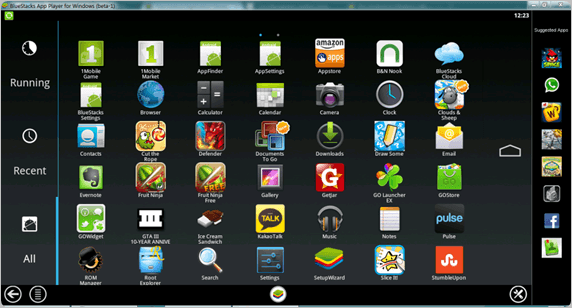
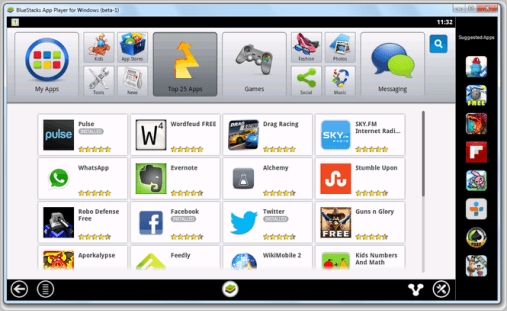
Bluestacks is widely used android emulator for PC. It does not required virtualbox support to create runtime environment for Android Apps. It provide easy one click installation and used in Windows 7, 8, 8.1 . It is free available. It Provide easily installation of Android Apps apk’s and third party apk’s. It can also be used to run IOS Apps on Mac and Windows. After the installation of blue stacks, you can search and download Android Apps to Run.

Blue-Stacks-emulator

2. GenyMotion.

GenyMotion is another Android Emulator for PC to run apps and games. Once you install GenyMotion it also install oracle virtual box side-wise to create Runtime Environment for Android Apps. It is also freely available. It provide you the full Android experience. It also provide the feature to choose from many Android Smartphones and tablets and enjoy its features. It is mainly used by developers to test their Apps.
Geny-motion-emulator

3. Native Android Emulator.

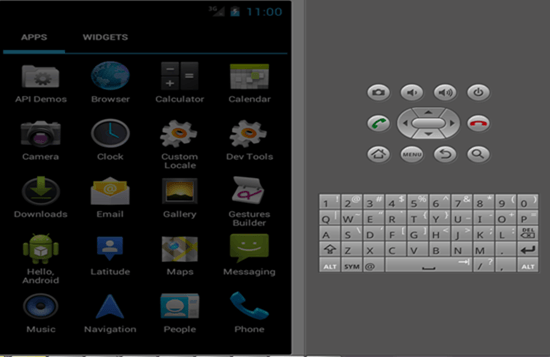
Native emulator is another popularly used Android Emulator for windows PC. It provide the user with the interface of an Android mobile. The user can install any Apps of  choice and run it on the emulator.This Emulator comes with Google development kit. It is available for Windows and Mac. After its installation we simply need to download the Apps apk’s we want to use. It offer high performance and quite simple interface of selected Android phone.
native-emulator
4. YouWave.
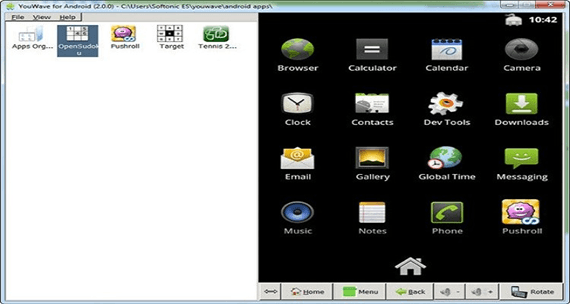
YouWave Emulator is another popular Android emulator for PC. It is the combination of BlueStacks and Native emulator. It provide the user with two screen parts. The left part of screen shows the installed applications and the right part shows the view of your mobile screen. It is not freely available and offer 10 days trail in its free version. It only support the 4.0 jelly Bean of Android version. It also depends on virtualbox for runtime environment.
You-wave-emulator

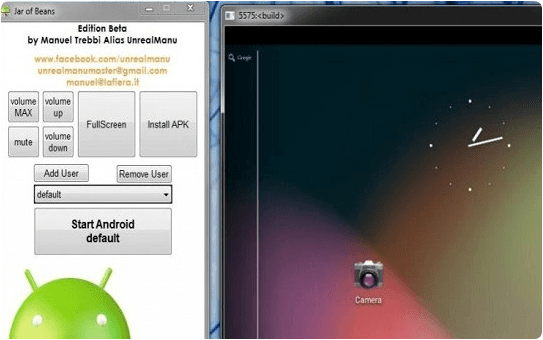
5. Jar Of Beans.

Jar of Beans is developed only for Android jelly Bean version as it is clear from its name. It is available on its official website for free. Once we install this we only need to download the apk’s of the application we want to install. Jar Of Bean is available for all versions of Windows and interface is quite user friendly and offer high performance.
jar-of-beans-emulators

6. Windroy.

Windroy is one of the most commonly used android emulator for Windows PC as it is clear from its name. One of its important features is that it works completely using Windows Kernal. Another important feature is that it does not require virtualbox support to create runtime environment for Android Apps and is very light weight. If you do not want to install virtualbox then you should use it.
windroy-emulators

7. Andyroid.

Andyroid is another best android emulator for PC Windows 7, 8, 10. It has some special features like use your phone asremote while game, ARM support, also you can direct download Apps from your host Operating System. It also require virtual box support to Android Apps.
andyroid-emulator
So above given are the best android emulator for PC which let you to run android apps easily on you windows. If you know any of the best android emulator which is missing, don’t forget to share in comments.

How To Create Wifi Hotspot In Windows Laptop Or PC

As we all know 21st century is an era of Internet. An Internet is a fast growing technology which provides every information in all over the world, you have to just search it on internet and you can find  information  related on any topic. With the increasing of new technologies Mobile phones, tablets are also growing very fast within the few decades. If you have a WiFi enable mobile phone, Tablet or an Ipad then you can easily connect your devices to available WiFi network in the public place, office or in the college, but in the home mostly people have only single connection (wired internet connections) or have not  WiFi router. Don’t worry, you can also connect your devices with your internet without any help of WiFi router. You have to just create an WiFi hotspot connection in your PC or Laptop. To Create WiFi Hotspot in Windows is not a very difficult task. You can easily create WiFi hotspot in your windows PC or Laptop by just doing simple steps which we discuss below.

Method 1:- How To Create WiFi Hotspot With Software.

In this method firstly you have to download software. After installing the software it will tell you creating your WiFi Hotspot username and password. Simply just create username and password according to you. Then click on start or activate button it will automatically create to you WiFi Hotspot, next whenever any user want to access your WiFi hotspot they have to put password first which is provided by you then they can access your WiFi hotspot network. So its just simple method and you can easily create a WiFi hotspot access point on your windows 7/8/8.1 PC or Laptop and you do not have to use any WiFi router.  So here we provide two software’s which is best and free for creating WiFi Hotspot on you PC or Laptop.

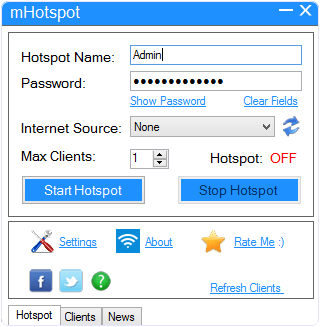
#1 mhotspot.
mHotspot is an free and easy method to create WiFi Hotspots with WiFi enable windows 7/8/8.1 on PC or Laptop. This software converts your computer or laptop windows into virtual WiFi router which can connect upto 10 devices. You can also share any type of internet connection including 3G/4G, LAN and Ethernet with the fully secured connection.
mHotspot
  • It is easy to use.
  • Security Features:- WPS, WPA2 and WEP password security.
  • The mHotspot also shows the number of devices connected, you can see sent and received data, and other log data.
OR USE
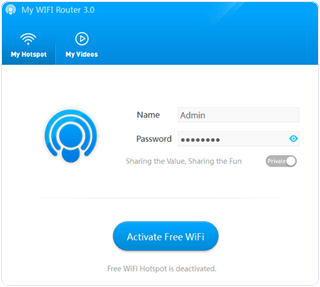
My WiFi router is another free software which converts your windows 7 & 8 PC/Laptop into WiFi hotspots. You can share the internet easily with My WiFi router software anywhere and anytime. Just download and install the software and place a your username and password according to you and click on activate button.
My WiFi Router
  • It is easy to create a secure WiFi hotspot with My WiFi router.
  • Share internet any kind of internet connection (3G/4G, Ethernet & LAN).
  • You can display and manage the connected devices(limit internet speed, blocklist).
  • You can extend your WiFi range.
Note:- Those who have desktop PC they have to first buy Bluetooth device then they will be able to create WiFi hotspot either they will not be able to create.

Method 2:- How To Create WiFi Hotspot With CMD.

In this method we will explain you that how to create WiFi hotspot in windows 7/8/8.1 PC or Laptop through command prompt. These are the simple steps to create WiFi hotspot.

Step 1:- Enable the Microsoft Virtual WiFi Miniport Adaptor.

  • To enable this first open “RUN” dialogue box using (“Window Key”+”R”).
  • After open the Run dialogue box type in it “cmd”. It will open your command prompt or in case you are not able to find by this way simply search at start for cmd you will easily get.
  • Run the command prompt under Administrator privileges by doing right click on cmd and select  (Run as Administrator) .
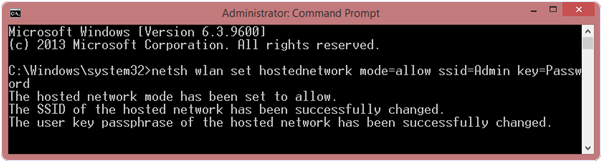
  • Once the command prompt open type in the below given command.
NETSH WLAN SET HOSTEDNETWORK MODE=ALLOW SSID=HOTSPOT KEY=PASSWORD 
command to create WiFi hotspot in windows PC or laptop
#1 SSID is your username that will show on the connection.
#2 Key is the password of your WiFi Hotspot connection.
#3 You can also create SSID and Key accroding to you !.

Step 2:- Starting WiFi Hotspot Connection.

  • After creating Hosted Network next you have to start it.
  • For starting WiFi hotspot connection, type in the command prompt given below command.
NETSH WLAN START HOSTED NETWORK
command to create WiFi hotspot in windows PC or laptop

Step 3:- Configuring Microsoft Virtual WiFi Miniport Adapter.

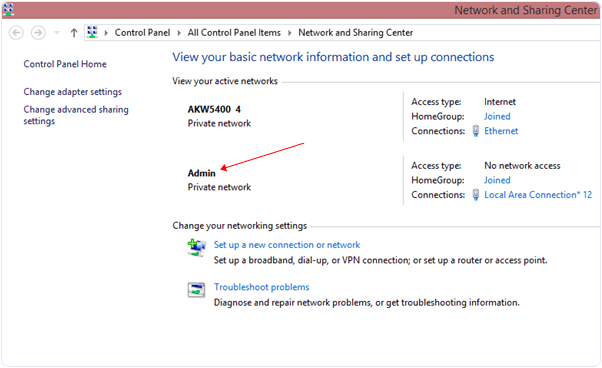
  • Go to Network and Sharing Center where you will see your created network.
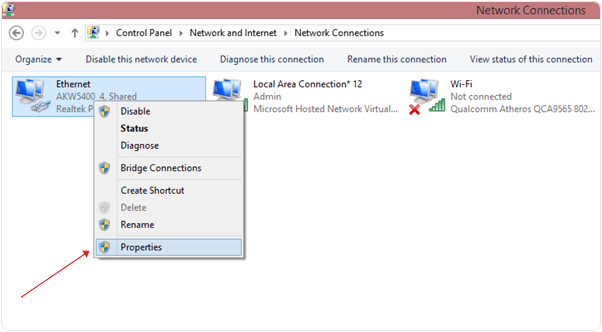
  • Next go to right side and you will see change adapter setting click on it.
windows network and sharing
  • Then click on the Ethernet >> Properties.
ethernet properties
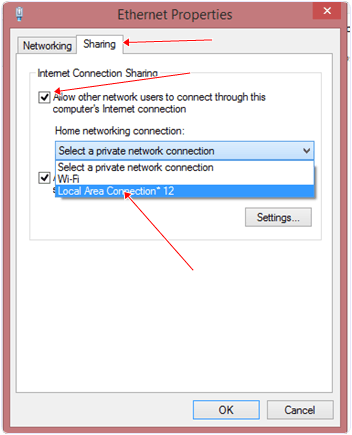
  • It will show you new dialogue box. Click on Sharing >> Tick on Allow network user. As show in the given image.
  • Select Local Area Connection*12 which we created.
  • And then click ok.
ethernet properties for wifi hotspot

Some Other Commands.

  • If you want to stop network connection then simply open your command prompt under administrator privileges and type below give command.
NETSH WLAN STOP HOSTEDNETWORK 
  • Or if you want to change your network Password then type below given command in the command prompt.
NETSH WLAN REFRESH HOSTEDNETWORKYOURNEWPASSWORD

Wednesday, 23 March 2016

Top Best Graphic Card Games For PC – 2016

Games are popular among children and youngsters. We use to play video games for fun and enjoy. Youngster like to play games for spending their free time and reduce their work stress. The various types of games consoles are popular now like PlayStation, Xbox and PC games. As we all know that gaming is totally changed from last 20 years. As i remember that i play video games on media box where we install chip of different games. Those games are so high quality but full of fun. Then after few years Saga games comes out in market. Which are better in graphics. But from last decade after the introduction of Sony PlayStation gaming level is totally changed. Now games provide adventure, fun, missions and different characters. It provide realistic scenes with attractive graphics. But to make our games more realistic we need more heavy graphics.
Every person can’t afford to buy separate console for gaming. So developer start providing both console based, PC and now smartphone based games. As i have listed out best android games to play. Heavy graphics games can played on PC but it required graphic card. So if you have high configuration PC then their is not need to buy any console system if you need hard core gamer. PC games with graphic card provide amazing quality. In this way you can save your money. But the most difficult task to find best quality high resolution full hd game for PC. Many of the developer introduce trailer for game which look pretty attractive but in actual games is low quality graphic. So don’t worry if you have best configuration pc and want to know which are best graphic card games for PC which are currently in trend of this year. So here are some best hd graphic card game of PC with their details and requirements.

List Of Best High Graphic Card Games For PC.

1. Call of Duty: Advanced Warfare.


Call of duty is one of the popular fighting game. The game provide you the attractive graphics and real looking graphics so that you think that you are in real War. You need a best Quality graphic card with large video RAM to play this game. The game is based on Military operation with new technology weapons. This game was released for Windows, PS4 and Xbox. The game offer you different challenging mission with the increased difficulty in each level. You should play this game at least one and i guarantee that you would like its graphics.
Call of Duty: Advanced Warfare pc game

2. Grand Theft Auto V.

Grand Theft Auto V is another popular high quality graphic game which is developed by Rockstar Games. GTA V is top in all graphic card games for PC. Its advanced version is released on November 2014 for the PlayStation 4,Windows and Xbox. The game provide you attractive graphics and you need a graphic card to play this game. The game is based on Thief character that do different mission for money. In the mission your thief is free to move anywhere in the city and can take different weapons, Cars, truck, other vehicle and can do fight with others. The game also offer different cheats to make it more interesting.
Grand Theft Auto V pc game

3. Battlefield Hardline.

Battlefield hardline is most popular game played with the help of graphic card. It offer you the high quality and attractive graphics. This game is developed by Visceral Games in March 2015. It is designed for Windows, Playstation 3, Playstation 4 and Xbox. This game focus on the fight against militant. The games are played in different modes like Rescue, bloodmoney, hotwire, crosshair mode. Each mode offer different mission and our player can access different weapons, military vehicle etc. The militant also have different weapons to compete with us. You should try this game at least one and enjoy attractive interface and graphics.
4. Far Cry 4.
Far cry 4 is also a adventure game which offer you a high quality graphics. It is a most popular shooting game. In this game you have to fight with enemy soldiers and wildlife animals. The game offer you different scenes of valleys, forests. hills etc. The game offer you a different types of weapons like sidearms, knife, Guns, heavy weapons like rocket launchers, machine guns etc. The weapon can be buy from the shops and take it from the fallen enemy. The game divide the area into north and south parts. The player start from the north and move towards south after facing different challenges. You should try it ones and enjoy its missions.
Far Cry 4 pc game

5. Titanfall.

Titanfall is another popular choice for high quality graphic games which is played with help of graphic card. Titalfall is most popular in all graphic card games for PC. In this game the player have to control a robert called titan and fight with other enemy titans. The game offer you the realistic graphics. It was released for Windows, Playstation 3,4 and xbox by Respawn entertainment. In this game you are offer different missions and your titan is loaded with different advanced weapons. The also support multiplayer mode over internet allow you to compete with other players.
Titanfall pc game

6. Fifa 2015.

Fifa 2015 is one the most popular football sports game. In this game you have to choose a football team and follow the same procedure as followed in the fifa world cup. This game is really for true football lovers. In this game you can also compete with other players in multiplayer mode. This game offer you more attractive graphics as you feel you are watching the football match. In this game teams are divided into various groups and each group have one team at last to play semi final and then final match. If you like sports games then you should play it once.
Fifa 2015 pc game

7. Need for Speed Rivals.

Need for speed Rivals is another popular high graphics Game. This is game for those players who like Car Racing. In this Game we have to compete our rivals in car racing. In the racing we get boost to increase our car speed and we can also destroy our rival car. As the level increased amazing cars with high speed are unlocked. The Game offer you the Attractive scenes of forests, valleys, Roads, mountains etc with high definition Graphic and we feel like we are sitting in real car racing.
Need for Speed Rivals pc game

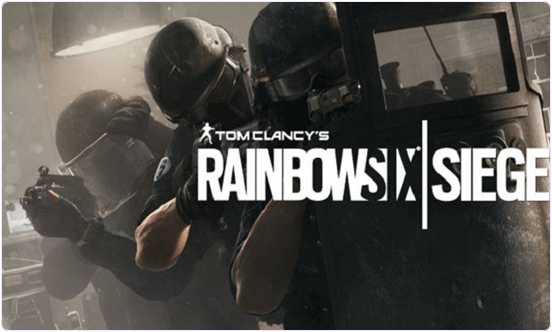
8. Tom Clancy Rainbow Six Siege.

Tom Clancy RainBow Six Siege is one the upcoming popular shooting, fighting and adventure game. The is coming in OCT, 2015 and is one the high Quality Graphic. In this Game your player have to do the different missions bypassing the high security. The Game also allow to play in team and offer Attractive graphics. In this Game you have to play against terrorist. You have various weapon to compete your enemy. You should try this game after release The game is available for PC, Playstation 4, XONE etc.
Tom Clancy Rainbow Six Siege pc game
These best graphic card games for PC with high graphics which are latest till date. We will update upcoming graphic card games for PC when they will available in market. In case we miss any best PC graphic games must leave your precious comment.
Back to Top