Method 1st:- Extract .Apk By Using APK Extractor.
 Apk Extractor is one the most popular Android Application which is Available on Google Play Store for free. This Application allow you to extract .apk file from installed App in any Android device. It also allow you take backup of any App and move it into SD card or another device like computer and Laptop and also allow you to upload into Google Drive. Approximately 5 Million install this App. After getting the .apk file you can share it with others. It is a easy to use and fast application which allow
- Extract all most all Applications include system Inbuilt application.
- NO device rooting of Android is needed.
- It provide search option to search different applications.
- It can extract multiple Apps files together.
- Compatible from Android version 2.2 to 5.0.
Steps To Extract .apk With APK Extractor.
1. Install Apk extractor into your Android device using the Button given below.

2. You can also download file manager to find the .apk file after extracting the file. By default the files are stored in /sdcard/ExtractedApks/.
3. Open the Apk extractor App on your device.
4. After launching the App you will see a list of installed Applications on your Android device.

5. Select the App whose .apk file you want to get.
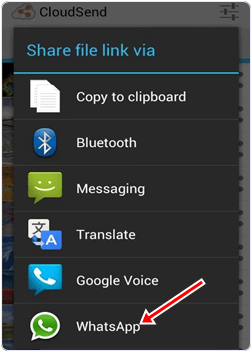
6. You can also share the apk file tap and select the share option.
7. Tap the menu button-> then setting to change the path where you want to save .apk file.
3. Open the Apk extractor App on your device.
4. After launching the App you will see a list of installed Applications on your Android device.
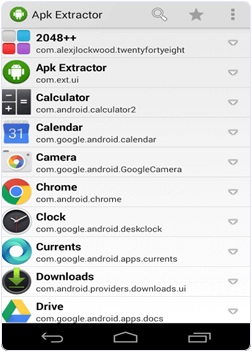
5. Select the App whose .apk file you want to get.
6. You can also share the apk file tap and select the share option.
7. Tap the menu button-> then setting to change the path where you want to save .apk file.
Method 2nd:- Extract .Apk By Using ES File Explorer.
 Es file explorer is one the famous file manager available on Google play store for free. It not only manage the files but also perform various tasks like download manager, task killer, cloud storage client, file sharing etc. It is available in 30 different languages. It is compatible with all Android versions. It also provide built in support for text, images, audio, video, Rar and Zip files. It can act as file manager, App manager, task manager, Bluetooth file browsing and sharing, text and photo editor. One of its most important feature is extracting .apk file from installed Apps and provide backup and sharing facility also. Approximately 300 Million users install this App. It provide easy to use tools and attractive interface.
Steps To Extract .apk File Using ES File Explorer.
1. Install and download the Es file Explorer into your device by clicking the following button.
2. Open the and launch the App in your Android Device.
3. After Launching the App navigate to the tool menu.
4. In the tool menu select the application manager.

5. In the application manager you will see a list of Apps installed in your device.
6. Select the App whose .apk file you want to get.
7. click on Backup and your .apk file will start extracting.
8. Browse the path where you want to save the file.
2. Open the and launch the App in your Android Device.
3. After Launching the App navigate to the tool menu.
4. In the tool menu select the application manager.

5. In the application manager you will see a list of Apps installed in your device.
6. Select the App whose .apk file you want to get.
7. click on Backup and your .apk file will start extracting.
8. Browse the path where you want to save the file.
These are some best ways to extract .apk files in android phone. There are numbers method and apps available to backup and extract apk file to make it shareable.