Showing posts with label amazon. Show all posts

Thursday, 24 March 2016

How To Make Money From Amazon Affiliate Program

Amazon is one of the largest online shopping website. As the trend of shopping products online increasing day by day just because it is really to grab best offers with great discount and other that product within few min. All this just because of Amazon. I know there are too many other eCommerce platform like Amazon but they just following what the amazon had done. Amazon changes the way of online shopping You just to place an other and product will come at your home with free shipping. Amazon try each and everything which help in the growth of their business. They are doing Advertisement and other many other ways but the most successful and effective reason for the Amazons success is the Affiliate program. Amazons affiliate associates program same as the other affiliate programs. But to understand the working Amazon affiliate you should need to know about Affiliate marketing so i suggest you to read about

What is Amazon Associates Program ?

Amazon Associates is one the largest affiliate from which many webmasters and even normal guys are earning huge bucks. Amazon associates help to earn just by promoting products available in there program. In simple works it is a commission based program just like we choose any dealer offline for buying products and dealer get commission. In the same we work like a dealer between Amazon and the buying who is interested in buying products amazon. If that person successfully buy product then amazon give us commission for our work. If really seems good to earn just by helping amazons to get more sales.

How To Earn From Amazon Affiliate ?

If you are capable to get traffic then amazon is best choice for you. Just by promoting relevance products according to traffic will help to get more sales. If you able to get more sale that means more will be the commission. So to start with amazon affiliate you have follow few steps to start earning from it.
  • First of all you need to sign up for new account at Amazon Affiliate.
  • After Sign up you can have add some personal information please don’t add anything wrong.
  • In Amazon affiliate account there are various features and method to search products and promote them.
  • In Amazon affiliate just create your tracking id from left sidebar and start searching promote which you feel that by which you can easily get sales.
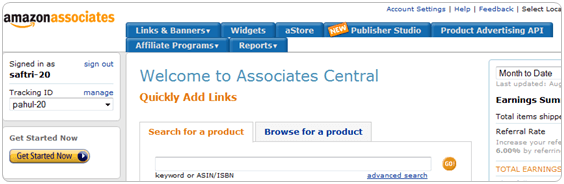
amazon associate program center
  • You can promote amazon by getting direct link of product, link of the page, place banner on blog or website and various technique. Amazon having publisher studio where you can get small code to make your blogs normal amazon products link into affiliate.
At the end i only say if your able to drive relevance traffic to amazon products then it not difficult to earn from amazon. Many guys are earning $100,000+ for month just by using amazon affiliate. If they can earn then why not you.
If you have any doubt or unable to understand anything please leave comment i will really appreciate your response.

Wednesday, 23 March 2016

Top 10 Best Waterproof Bluetooth & Wireless Sport Headsets in 2016 Reviews

When you look on the market, you can find any types of headsets that are available today. Different headsets may come with their own benefits and features for all customers. Here are top 10 best waterproof Bluetooth & wireless sport headsets in 2016 reviews.
Earn Money online from your website

#1. Vafru V8 Wireless Headset

Buy This
There are some good features from this headset. This headset has comfort fit, so you can feel comfortable when wearing this headset everyday.

#2. Global Times Wireless Bluetooth Headset

Take It Now
This is another popular headset that is available on the market nowadays. This device has ultra light, sweatproof, and also anti-dropping feature, in order to support your needs.

#3. Soaiy Waterproof Wireless Bluetooth Headset

When you want to purchase a good headset for yourself, you should take a look at this unit. This waterproof headset allows you to use this headset when you are doing any of your favorite sport activities

Tuesday, 22 March 2016

Getting the Most Out of Your Logitech Harmony Elite

So you’ve purchased a Logitech Harmony Elite. Now it’s time to put it to the test and move beyond just using it to turn on your television or audio device. Here are some of our favorite ways to use the universal remote controller in your home.
harmony-elite
Please note: Many of these tasks will also work with other Harmony remotes that support the Harmony Hub.


Harmony and Philips Hue

Philips Hue, the wireless lighting system, like Nest, helped define the still-growing smart home industry. With your Harmony Elite, you can both control the lights that are part of your Philips Hue system, plus add them to your list of home activities.

Setup

To add your Philips Hue to Harmony, find Devices from the Harmony app. From there, click Edit Devices at the bottom of the screen. Next, click + DevicesHome Control, and then HueLog into your Philips Hue account, and then follow the final instructions.
You can now adjust lighting using the Harmony Elite remote and Harmony app, including changing colors and scenes. You may also organize your light bulbs into groups such as Living Room and Kitchen. To do so, find Devices from the main screen on your smartphone app, scroll to the bottom and select Edit Devices, then+ Group. Once configured, you may tap the group bulb icon to power everything on/off and swipe left/right to control brightness. You may also expand the group to control bulbs individually.
harmony-controls
You can also assign home control buttons to work with the Elite remote controller. From the Harmony app, go into Settings under Remote & Hub. From there, select Harmony Elite > Home Button Controls. There are two light buttons on your Harmony Elite remote controller. Select Button-1 and Button-2 to assign light bulbs.
Note: A short press of a light button turns the bulbs on while a long press switches them off. The two rocker switches next to the buttons control light brightness.

Activities to try

Anyone with the Philips Hue system knows that one of its best features is the ability to change the color of light bulbs to suit your mood or setting. With the Harmony Elite, you can have colors change whenever triggering activities. For example, you may want your bedroom lights to turn blue every time you’re listening to Sonos. Or have your living room lights turn off whenever you’re watching your favorite sports team on ESPN.
There are countless combinations to try between the Logitech Harmony and Philips Hue. The only limitation is your imagination.

Wednesday, 16 March 2016

How to Use Google Now to Automate Your Home and Life

There sure is a lot of hype around the Amazon Echo, but what would you say if I told you that you already have the features that Echo offers in your existing Android smartphone? It’s called Google Now.
We’ve covered using Google Now for things like searching the web and driving while using your phone hands-free, but Google Now can also serve as voice control for your smart home gadgets, posting to your favorite social media accounts, and even tracking your health.
If you own an Android phone, don’t blow your hard-earned money on an Amazon Echo! Follow the tips in this article to use your voice controlled smartphone to automate everything in your life that’s important to you.

Control Your Nest Thermostat

No, there isn’t a Google Now command to directly control your Nest learning thermostat, but there are a couple of ways you can make that integration happen without much work.
Buy Your Products Here...


If you’ve never used IFTTT before, make sure to check out our IFTTT guide and set up your account. Next, create a new recipe and select Gmail as a trigger. ChooseNew email in inbox from search, and type “subject:nest” in the Search for field.
email-nest-command
Create the trigger, and next choose the Nest channel as the action. Select the Nest device you want to control, set the BodyPlain ingredient so that it uses the body of the email as the temperature setting.
email-nest-command2
What this IFTTT recipe does is watches your email account for any incoming emails with the subject “Nest”, and sets the temperature of your Nest to whatever number is in the body of the email.
So how does this work with Google Now and your phone?
Well, now all you have to do is say “Send email to Ryan, subject Nest, Message 70“.
email-nest2
Instantly, Google Now will send the email, the email will trigger IFTTT and your Nest will be set to 70 degrees. Done.

Tips for Your Google Now Email Trigger

Now that you know the trick to transforming Google Now into your own voice controller for everything, there are a few things you may want to do before you start going crazy setting up your integrations.
  • The last thing you want are a bunch of random emails arriving in your regular email account, so you may want to consider setting up a special email account just for your Google Now voice triggers and set it up to work with your IFTTT account.
  • For every on/off configuration, like Philips Hue lights, you only have to worry about the subject line. Try something like “kitchen lights on” or “kitchen lights off”, and then configure those integrations (see below).
  • For devices you need to adjust to a setting, use the body of the email to do it, like with the Nest example above.
  • When you set up this “voice control” email in IFTTT, consider giving it a name that makes sense for you. Hey, if you really want to make people laugh, name it “Alexa”.
To avoid any copyright infringement, I’ll go with “Johnny” for my own personal voice controlled assistant.

Add Reminders to Your To-Do App

No matter what online To-Do app you use, the odds are pretty good that you can post to it via IFTTT. ToDoist, Toodledo, and Kyber are all available in IFTTT, and using the same Google Now approach above you can use voice control to add reminders.
Here’s the voice command you can use for this: “Send email to Johnny, subject To Do, Message Pick up the groceries today
Create a Gmail trigger using New email in inbox from search and set theSearch for field to “to do”.
email-todo1
Then create an action for the to-do app of your choice. In my case, I use ToDoist, so my “Create task” action looks like this:
email-todo2
The message of your email becomes the task that you add to your to-do app. The cool thing with ToDoist is if you include wording like “next tuesday at 4pm” or “every 3rd wednesday of the month”, ToDoist is smart enough to schedule that task exactly the way you want it to.
The ability to do this with your voice, without touching your phone or your computer, is a very cool feeling.

Log Your Weight With Your Fitbit

Here’s the voice command you’ll use for this integration: “Send email to Johnny, Subject Fitbit, Message 220
The goal here is to simply tell your phone what your new weight is, and have your Fitbit log it. With IFTTT, this is really simple.
Create a Gmail trigger using New email in inbox from search and set theSearch for field to “fitbit”.
email-fitbit
Next, choose the Log your weight action in the Fitbit channel. Fill in the Weightfield with the body ingredient of the email.
email-fitbit2
Now, all you have to do is use your new Fitbit voice command to send in your weight using your Android phone, and you’re done. You don’t need to find a computer or log into your Fitbit app with your phone. Just say it, and you’ve logged your weight.

Post to Social Accounts

Sure, with Amazon Echo you can use voice commands to post to Facebook and Twitter, but so what? You can do the same thing with Google Now!
Here’s the voice command you’ll use for posting to Facebook: “Send email to Johnny, Subject Facebook, Message This is my status update!
As you can see, the subject of this command tells “Johnny” that you want to post to Facebook, and the body of the email contains the post. Here’s how that looks in the IFTTT Facebook Create a status message action.
email-facebook
Here’s the voice command you’ll use for posting to Twitter: “Send email to Johnny, Subject Twitter, Message I can’t believe I can post to Twitter with my voice!
This tells “Johnny” that you want to post to Twitter, and the body of the email contains the Tweet. Here’s how that looks in the IFTTT Twitter Post a Tweet action.
email-twitter
Hey, why stop at Facebook and Twitter? Why not post to Slack while you’re on the run by using your voice? I’ll tell you what, you can’t issue Amazon Echo social post commands while you’re running or driving around outside of your home, but youcan do it with Google Now – both inside and outside your home.
Here’s the voice command you’ll use for posting to Slack: “Send email to Johnny, Subject Slack, Message Hey everyone, I’m going to be late for the meeting!
This tells “Johnny” that you want to post to Slack, and the body of the email contains the post. Here’s how that looks in the IFTTT Slack Post to Channel action.
email-slack
Notice that you need to define a single channel where your voice-controlled Slack posts will go.

Just Imagine What You Can Control With Your Voice

All you have to do is browse through the IFTTT channels to see how many cool things you’ll be able to control with your voice using this new approach. If you haveSmartthings products, Wink gadgets, WeMo devices or any other smart gear integrated throughout your home, you can activate or deactivate them using your voice with Google Now and IFTTT.
ifttt-smart-home
It’s really only limited by the smart home products you own — IFTTT adds new smart home gear to its repertoire all the time.
Do you have Google Now enabled on your phone? Are you 

Set Up Remote Video Surveillance At Home

What’s happening in your house right now? Perhaps the cat is climbing your curtains, or your young son is playing catch in a room full of ornaments. There might even be an open window, inviting intruders.
If you’re home, you can sort all of these things out. But if you’re out of the house, you wouldn’t usually be aware of them, and therefore be unable to deal with the various dangers and incidents that are likely to occur.
To find out what is happening, you’ll need to set up a remote video surveillance system, and some means of viewing what is happening. There’s a good chance that you have an Internet connected smartphone, so that’s the viewing arranged. But what solutions can you use to setup video surveillance in your home, and once you’ve done this, what should you be looking at?

1. Pair Your Webcam with Your Phone

Perhaps the easiest option is to use one or more webcams connected to your PC. SKJM’s iCam is probably the best product out there at the moment, which facilitates the easy connectivity between a desktop computer (Windows or Mac camera servers can be downloaded from the iCam website) and an Android or iPhone/iPadmobile device.


While the desktop app is free, the mobile clients will set you back $5, but once setup, you’ll be able to observe what is taking place on your webcam on your smart device.
Several other tools are also available for creating a remote video surveillance system with your PC webcam.

2. Use an Old Smartphone

If relying on your PC’s webcam is impractical (perhaps the USB cable isn’t long enough to position the camera as you prefer), why not use one or more old smartphones?
IPCam5
These days, pretty much every electronic device comes with a camera, and by taking advantage of the camera on your old smartphone you can keep an eye on your property from afar. Whether your drawer hides an iPhone, Android, BlackBerry or even an old Windows Mobile device, you should be able to find a suitable app to stream what the camera captures, and watch it remotely.
Our guide to building a security camera network out of old smartphones explains this in more detail.

3. Split Personality Action Cam

If you like to record footage of yourself skiing, skateboarding or some other exciting outdoor pursuit, and prefer to fund that sort of pastime rather than in securing your home — but reckon the latter is probably a really good idea — then perhaps consider the FLIR FX.

Unbelievably, this is a streaming security camera that actually doubles as an action cam! With up to 160 degrees of capture and 1080p recording, the camera can also display things you don’t see with the naked eye, such as temperature and humidity.
Compatible with FLIR Systems cases, you can view the streamed footage using theiPhone and Android apps.

Monday, 14 March 2016

Useful Products You Must Try in 2016

Helmet Concussion Sensor

We all want to prevent concussions, especially as recent research is showing an even greater link between concussions and neurological issues later in life. This is particularly important in sports like football and hockey, and that’s where a product like Shockbox comes in handy.


Shockbox is a sensor that attaches to protective helmets and uses accelerometers to measure the effect of a head impact. This information is sent to the smartphone of a parent or a coach via Bluetooth, which allows them to make critical decisions like whether they should be taken off the field.
Available on both Android and iOS, this sensor-and-app combination also allows for the recording of symptoms after collisions in order to track the player’s overall health.

Back to Top